# Set up a mono repository
### Intro
I was intrigued by a blog post from [Rémi Rousselet](https://twitter.com/remi_rousselet) with the title [Getting started: Creating your Flutter project](https://dash-overflow.net/articles/getting_started/). In this post, Rémi does an excellent job in explaining how to set up a Flutter project with the right rules, like enabling strong-mode, set up the linter, and disable warnings for generated files. A great way to start…. except for one thing, that I could not grasp fully. Rémi advises using the ‘/packages’ folder convention. Although I did understand the idea behind it, I could not find the right workflow to set this up. It always felt a bit like hacking and abusing the IDE, in my case Android Studio, until it worked.
In this blog post, I write about the workflow that I have found to set this up the right way, and with consistent results. ‘Consistent result’ you might think…. what? This is because Android Studio does more than just opening the folder when you open a Flutter project for the first time. It does search and index the whole tree and makes assumptions about how you probably want to use the project. It uses the data and file contents (like .gitignore) in your project folder, to guess the right settings. This means that if you do things in (a slightly) different order, the result is a bit different.
This blog post will help you to set up your Flutter project consistently and logically. You will have Flutter app project, with the possibility to extract your reusable code in separate packages (or plugins). With, of course, the ability to reuse these packages easily in other projects. You could even put these packages later on at pub-dev, and just update the reference in pubspec.yaml to use the published version.
There is also a companion repository on github to automate this process. You can read about it here: [Make all these steps a one-liner](#heading-make-all-these-steps-a-one-liner)
I use [Flutter Version Management](https://pub.dev/packages/fvm) (FVM) by [Leo Farias](https://twitter.com/LeoAFarias). If you have multiple Flutter projects that you have to support, this tool is mandatory. It keeps track of the Flutter version you have used for a specific project and it makes switching between these versions a breeze. You will never have to wait again for downloading the Flutter files when you switch to another project that uses another version of Flutter. It will improve your life as a developer.
### FVM
Make sure you have [FVM](https://pub.dev/packages/fvm) installed and applied the setup of paragraph “Set Global Version”.
### Create project folder
````
mkdir 0000000-demo_mono_repo_app-rubigo
````
I use the following convention for the project folder:
* 0000000
The customer id filled up with zeros to seven positions. Companies might change their name, but their id (as used in the ERP or financial system) does not change.
* –
A separator between customer id and app name.
* demo_mono_repo_app
This is the name of the app, only lowercase and underscores allowed
* –
A separator between app name and the company name
* rubigo
This is the name of the company, this makes it easy to search for a project in a folder
### Go to the project folder
```
cd 0000000-demo_mono_repo_app-rubigo
```
### Initialize git
```
git init
```
**Caveat 1**
You can also enable git via Android Studio:
Menu => VCS => Enable Version Control Integration…
But this does create a .git folder inside the Flutter project. This is not what we want. The goal is to have a mono-repo, which means multiple packages in one git repository. That’s why we have to do the git init in the top project folder
### Create packages folder
```
mkdir packages
```
### Change to packages folder
```
cd packages
```
### Create app project
```
fvm flutter create --org rubigo --project-name demo_mono_repo_app --ios-language objc --android-language java app
```
* **fvm**
This is the Flutter Version Management program.
* **flutter**
Because of FVM’s “Set Global Version”, the selected Flutter version will be used to execute the command.
* **create**
This instructs Flutter to create a new app project
* **–org com.rubigo**
The company to use. This is used (with the project name) for Android’s application id and iOS’s product bundle identifier.
* **–project-name demo\_mono\_repo\_app**
This is the name of the app, only lowercase and underscores are allowed. I keep this identical to the name of the app in the project folder name.
* **–ios-language objc**
It’s my preference to use objective c as the language for the iOS runner. Choose as you like.
* **–android-language java**
It’s my preference to use java as the language for the Android runner. Choose as you like.
* **app**
This is the name of the folder for the app project that is created inside the packages folder. If it’s always ‘app’ across projects then it’s always easy to find.
### Change to app folder
```
cd app
```
### Commit .gitignore
```
git add .gitignore
git commit -m "[app] Initial commit"
```
Because we will edit the gitignore file, we will commit it first to have a complete history correct.
Change .gitignore for IntelliJ IDEA
```
# IntelliJ related
-*.iml
-*.ipr
-*.iws
-.idea/
+.idea/**/workspace.xml
+.idea/**/tasks.xml
+.idea/**/usage.statistics.xml
+.idea/**/dictionaries
+.idea/**/shelf
+.idea/**/libraries
```
The new .gitignore allows sharing of modules and run configurations between developers.
### Commit .gitignore
```
git add .gitignore
git commit -m "[app] Change .gitignore to include important .idea files"
```
The changes are committed.
### Commit Flutter project
```
git add -A
git commit -m "[app] Initial flutter project"
```
Now the freshly created Flutter project is committed.
### Init fvm for project
```
fvm use 1.22.6
```
This adds the .fvm folder to the project. This folder contains a file with the flutter version to use and a symlink to the selected Flutter version.
### Change .gitignore for FVM
```
# FVM related
/.fvm/flutter_sdk
```
These lines are needed to explicitly exclude the flutter_sdk folder from git. Otherwise, you have the risk of adding a complete Flutter SDK to your repository.
### Change demo_mono_repo_app.iml
```
```
This excludes the flutter_sdk path in Android Studio. Otherwise, search results will also include results in the Flutter SDK.
**Caveat 2**
If you try to add this line via the Android Studio menus File=>Project Structure=>Modules, Android Studio will bite you. During startup, all folders are indexed, including the .fvm/flutter_sdk folder. You will end up with countless excluded folders from the SDK folder in the demo_mono_repo_app.iml file.
### Commit FVM changes
```
git add -A
git commit -m "[app] Init FVM 1.22.6"
```
### Remove android.iml from modules.xml
```
--
```
Remove the demo_mono_repo_app_android.iml module in the file .idea/modules.xml. It is not needed.
### Commit modules.xml
```
git add -A
git commit -m "[app] Remove demo_mono_repo_app_android.iml from modules.xml"
```
### Mono repo setup is finished
This is it, the flutter mono repo is successfully set up.
### Make all these steps a one-liner
If you want to make these steps above a one-liner you can use this dart cli project: [https://github.com/jsroest/create\_flutter\_mono\_repo](https://github.com/jsroest/create_flutter_mono_repo)
```
dart create_flutter_mono_repo.dart --root-path / --customer-id 0000000 --project-name demo_mono_repo_app --customer-name rubigo --org com.example --ios-language objc --android-language java --flutter-version 1.22.6
```
### Always open the app folder
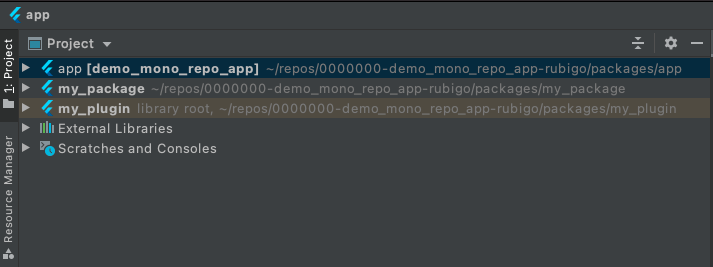
Remember to always open the app folder in Android Studio if you want to work on your Flutter app or one of the local packages that you will add later. The app folder will contain links to the other packages so that you can edit all your Flutter code from one place.