Add a package to a mono repository

In this part, we are going to add a package to an existing mono-repo.
Open a terminal and go to the packages folder.
Go to the packages folder
cd ~/repos/0000000-demo_mono_repo_app-rubigo/packages
Create a Flutter package
fvm flutter create -t package --org com.example --project-name my_package ./my_package
Open/restart Android Studio
Android studio might not detect the new folder. Restarting Android Studio fixes that.
Commit package
From now on we will use Android Studio to review and commit files.
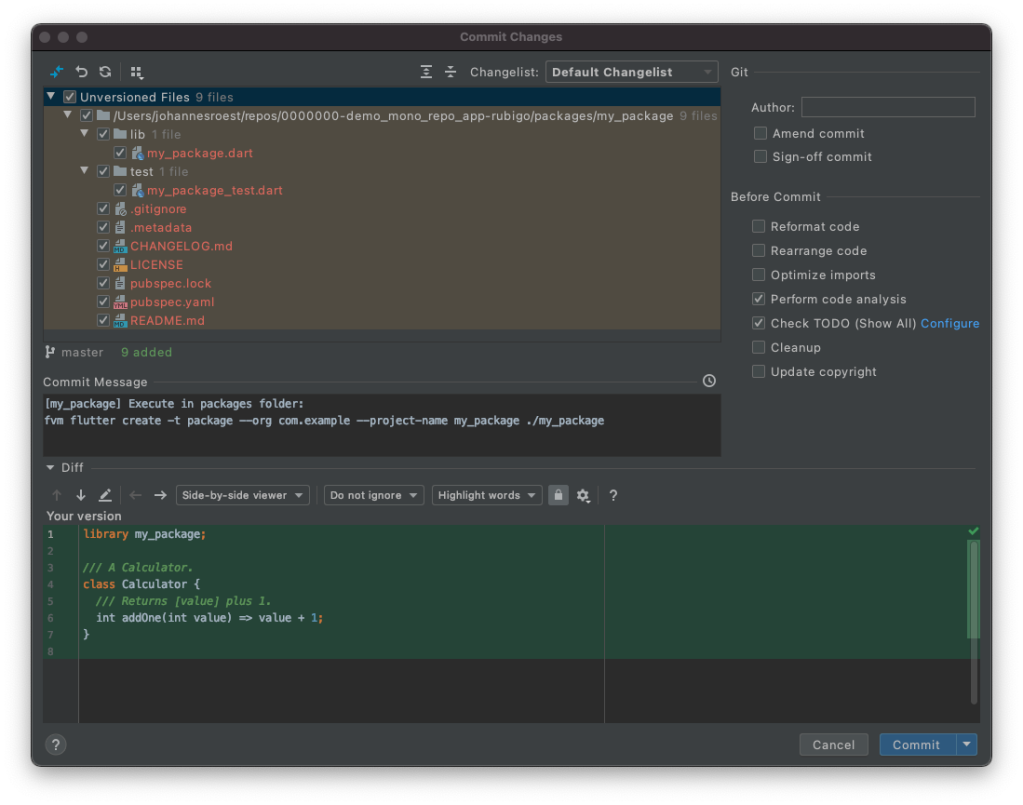 Choose “Commit”
Add package as a module
Android Studio => File -> Project Structure => Modules => + => Import Module
Navigate to my_package folder and choose “Open”. Be aware that the initial folder that Android Studio suggests might not be part of your current project.
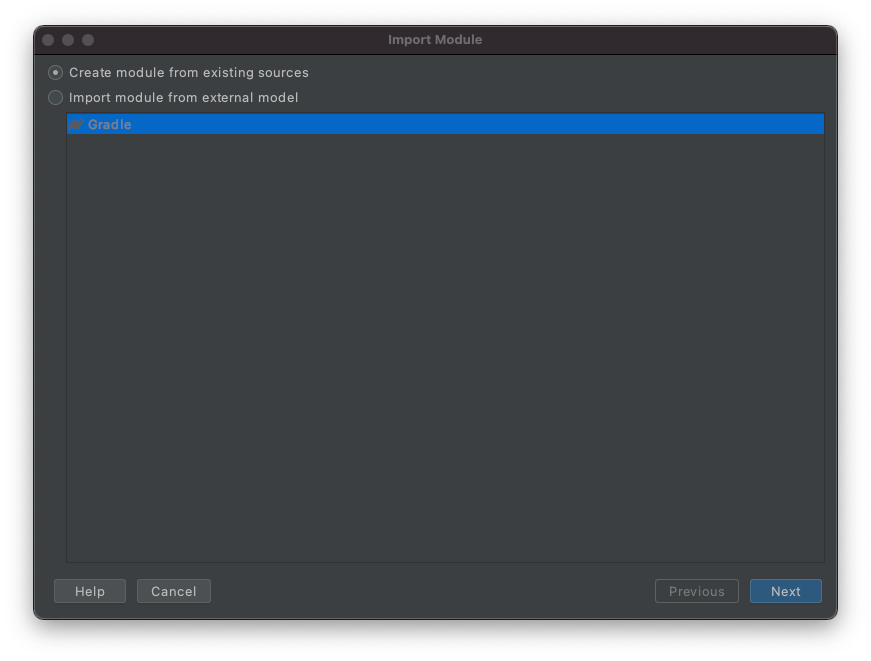 Select “Create module from existing sources”, choose “Next”
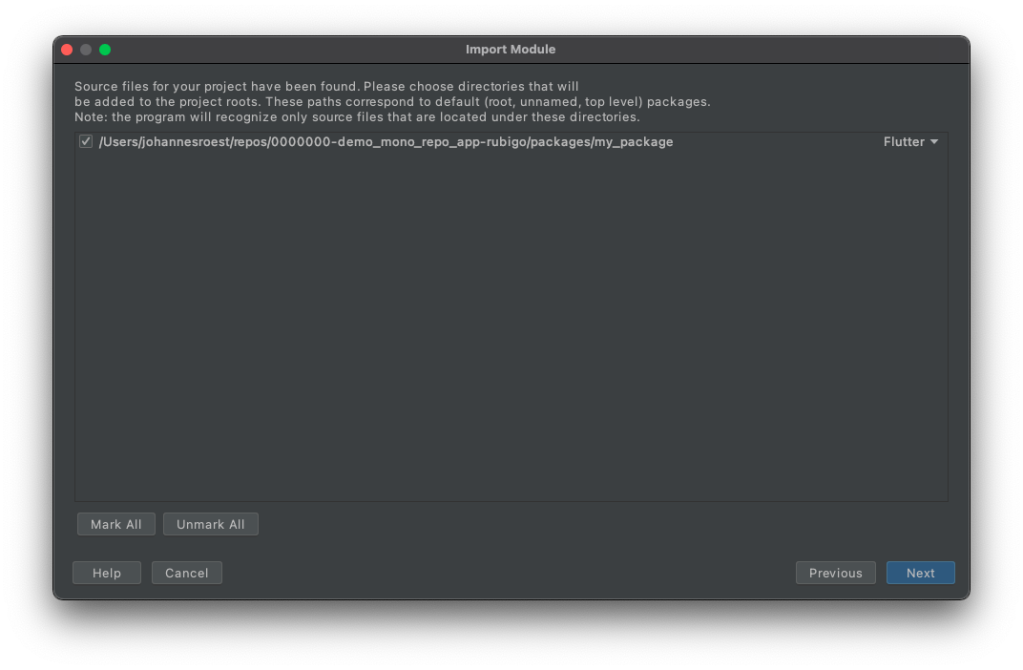 Choose “Next”
 Choose “Next”
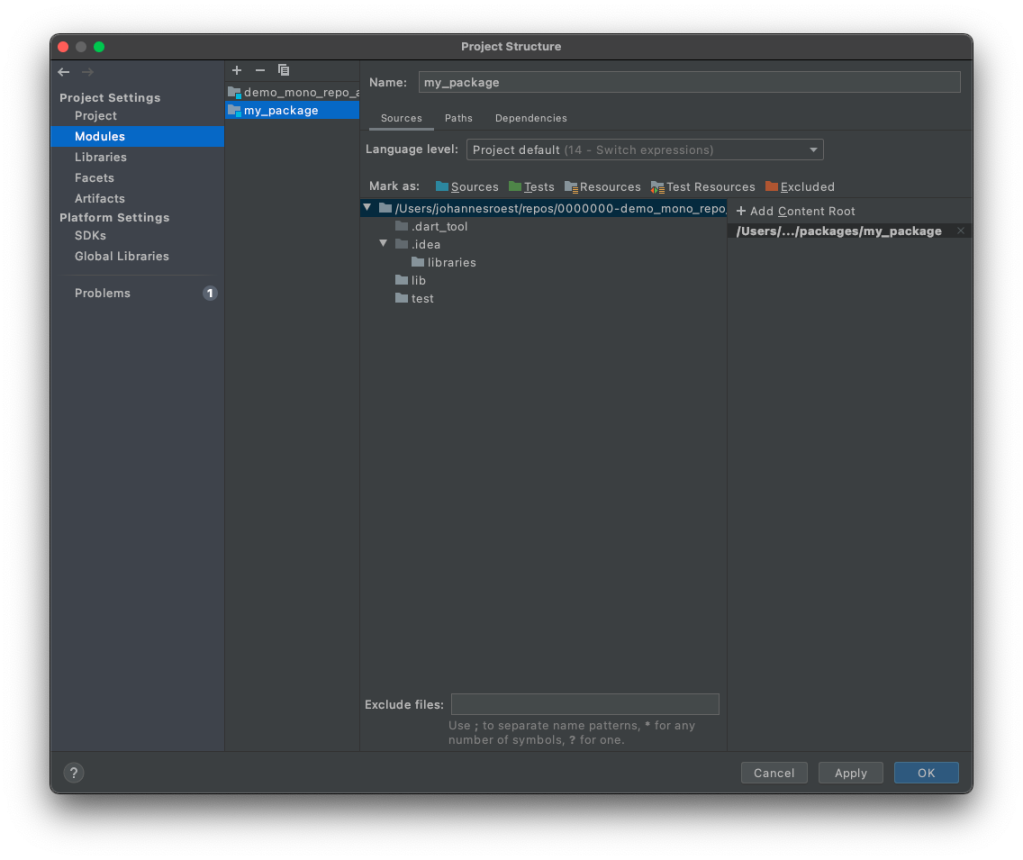 Choose “OK”
Commit add a package as a module
 Choose “Commit”
Add package as a dependency
Open demo/mono/repo/app/pubspec.yaml and add my_package, and run pub get.
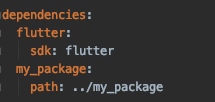
Commit add a package as a dependency
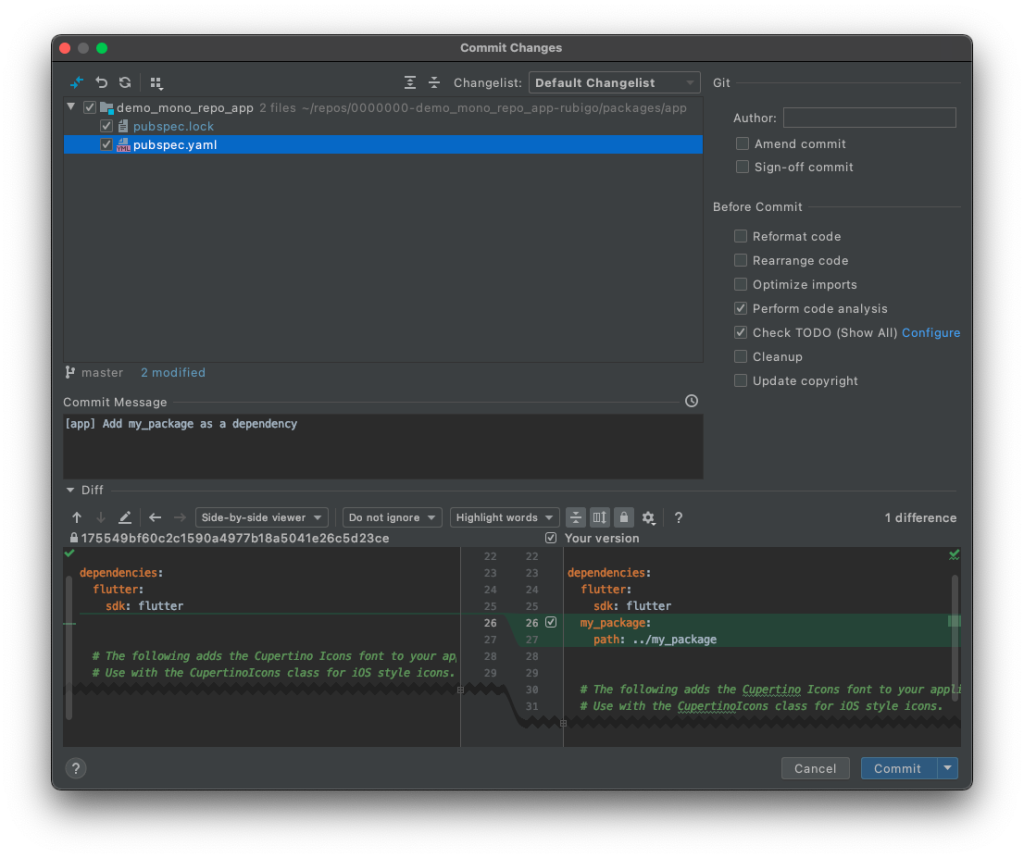 Choose “Commit”
Change main.dart to use package
If you change the line _counter++ to the sample here below, the demo app will use the package to add the values. Hot reload also works while you make changes to the implementation in my_package, which is awesome.
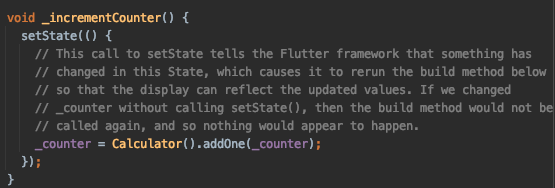
Commit changes to main.dart
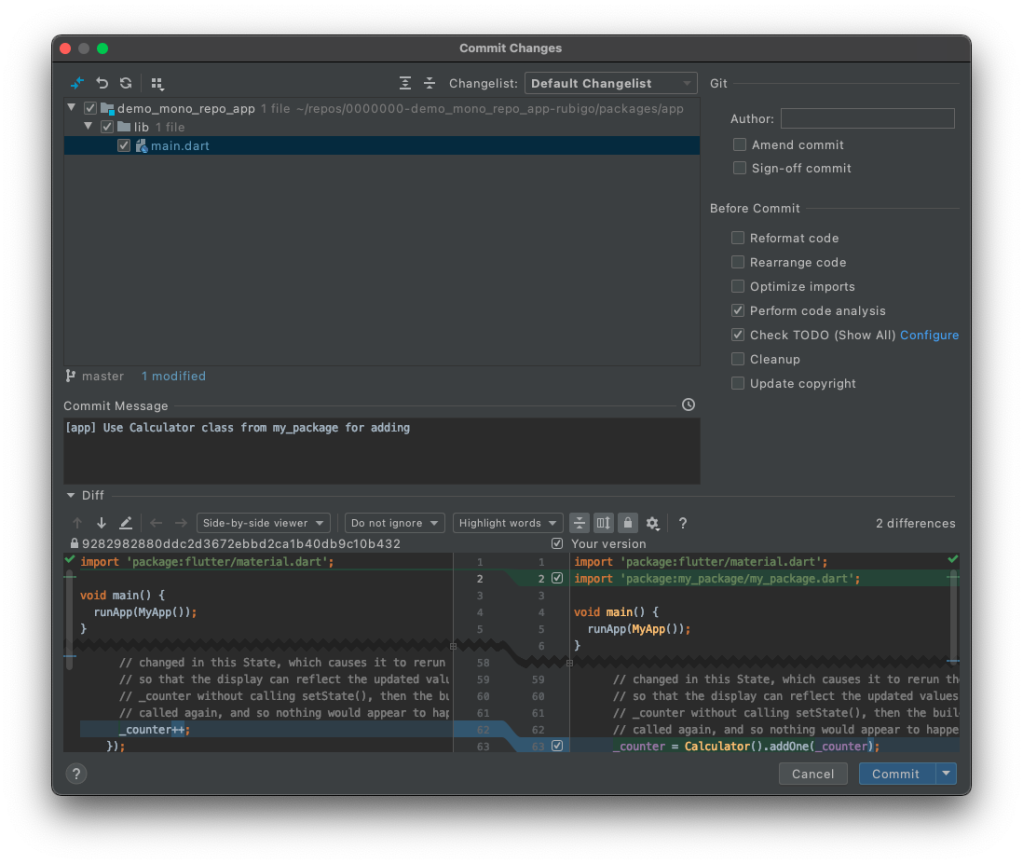 Choose “Commit”
Done
These are all the steps that are needed to add a package to the mono-repo.
About the author
https://bsky.app/profile/sander-roest.bsky.social
Comments
Join the discussionNo comments yet. Be the first to comment.


